FinTrail is a portfolio tracking and market intelligence platform built specifically for Dhaka Stock Exchange investors. Whether you are managing a single long-term portfolio or running multiple strategies, FinTrail gives you the tools to track every trade, monitor the market, screen stocks, and connect with other investors — all in one place.
This guide walks you through your first 10 minutes on the platform.
Creating Your Account
Head to app.fintrail.net and sign up with your name, email, and phone number. You will receive a verification email — click the link to activate your account.
Once verified, you will be prompted to complete your profile:
- Username — this becomes your public profile URL (e.g.,
app.fintrail.net/user/yourname) - Trading style — Day Trader, Swing Trader, Position Trader, Investor, or Scalper
- Bio — a short description visible on your community profile
- Profile photo — upload a photo (max 2MB)
You can always update these later from the Profile page.
Creating Your First Portfolio
After logging in, you land on the Portfolio Dashboard. Since you are starting fresh, the first thing to do is create a portfolio.
Go to Manage Portfolios from the navigation menu and click Create Portfolio. You will need to fill in:
- Name — something descriptive like “Long Term Holdings” or “Swing Trades”
- Description — a brief note about the portfolio’s purpose
- Initial deposit — the amount of cash you are starting with (in BDT). This becomes your available funds for buying stocks.
- Broker commission — your brokerage fee as a percentage (e.g., 0.5%). FinTrail automatically calculates commission on every trade.
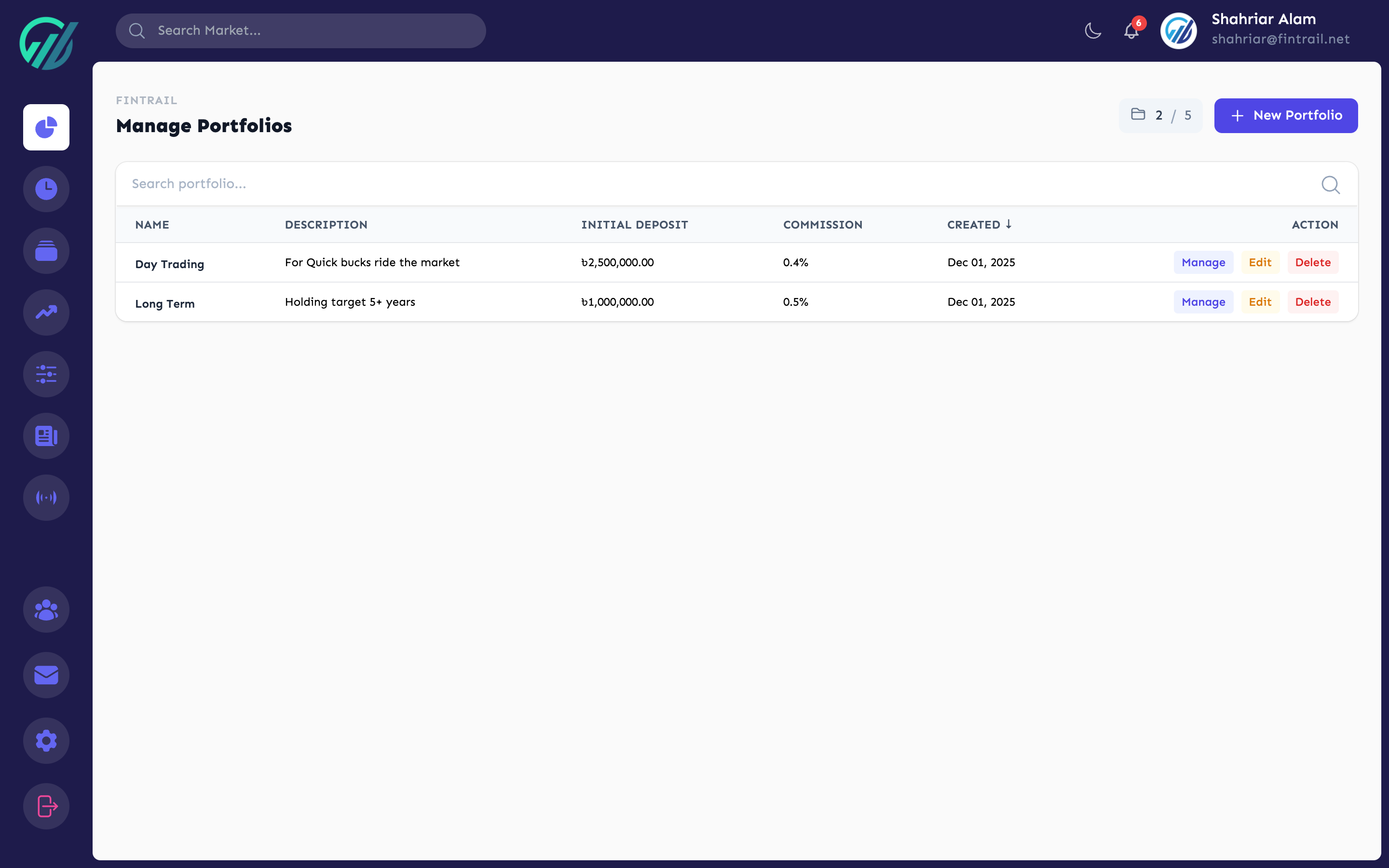
You can create multiple portfolios to separate strategies. For example, one for long-term value investing and another for short-term swing trades. Switch between them using the portfolio dropdown on the dashboard.
A Quick Tour of FinTrail
Here is what each section of FinTrail does. We will cover each one in detail in the upcoming posts in this series.
Portfolio Dashboard
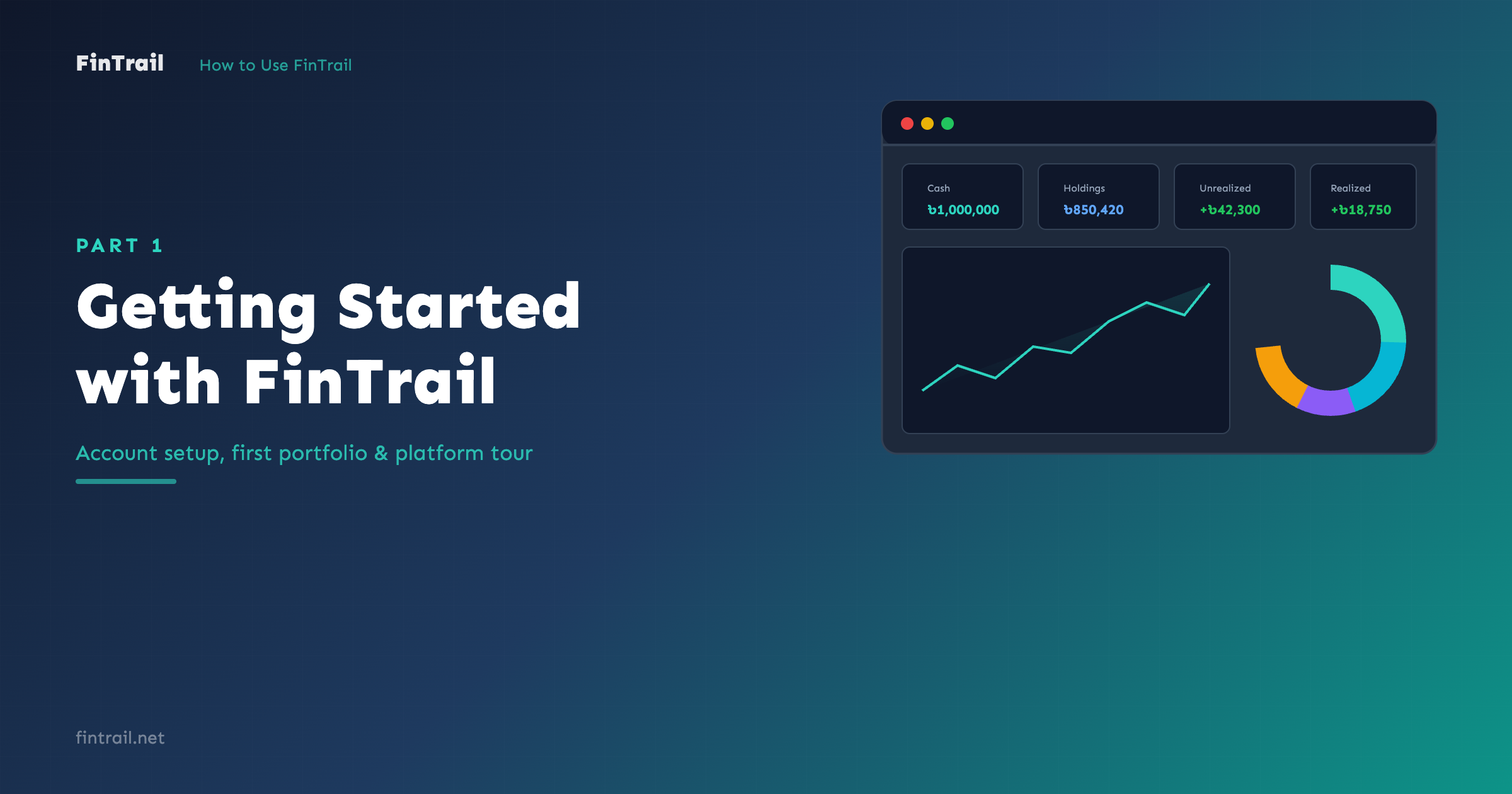
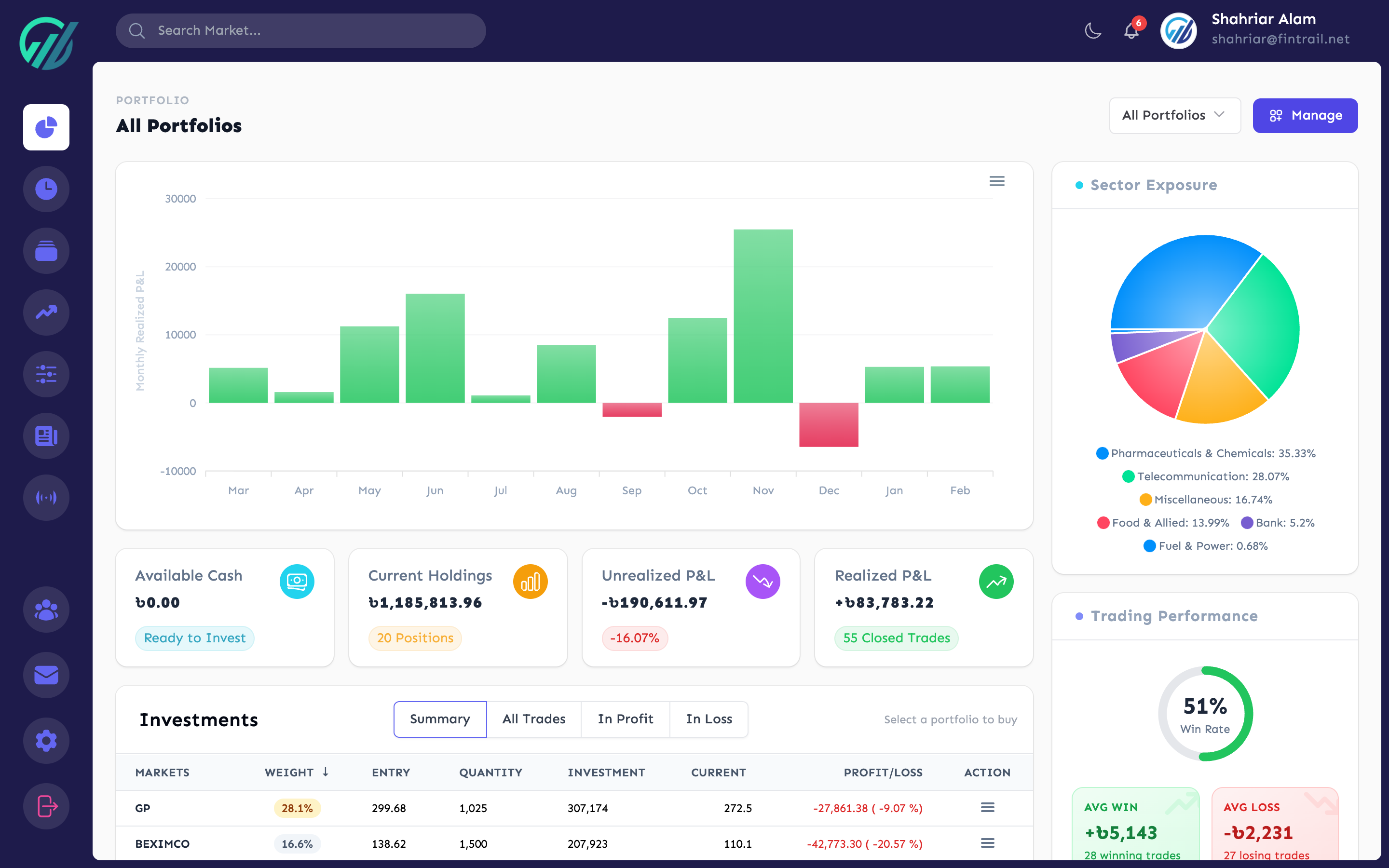
Your home screen. It shows your current holdings, unrealized P&L, cash balance, sector exposure breakdown, best and worst performers, and a monthly profit/loss chart for the last 12 months.
Stocks & Watchlists
The Stocks page shows all ~400 DSE-listed stocks with live prices, daily change, and volume. Create watchlists to group stocks you are monitoring — for example, “Dividend Picks” or “Tech Sector”.
You can add stocks to watchlists, set price alerts, and jump to detailed analysis — all from this single page.
Stock Analysis
Click any stock symbol to open its Analysis page. Here you get:
- Live price data and daily trading summary
- Interactive TradingView chart with 13+ years of historical data
- Fundamental data — P/E, EPS, NAV, dividends, shareholding breakdown
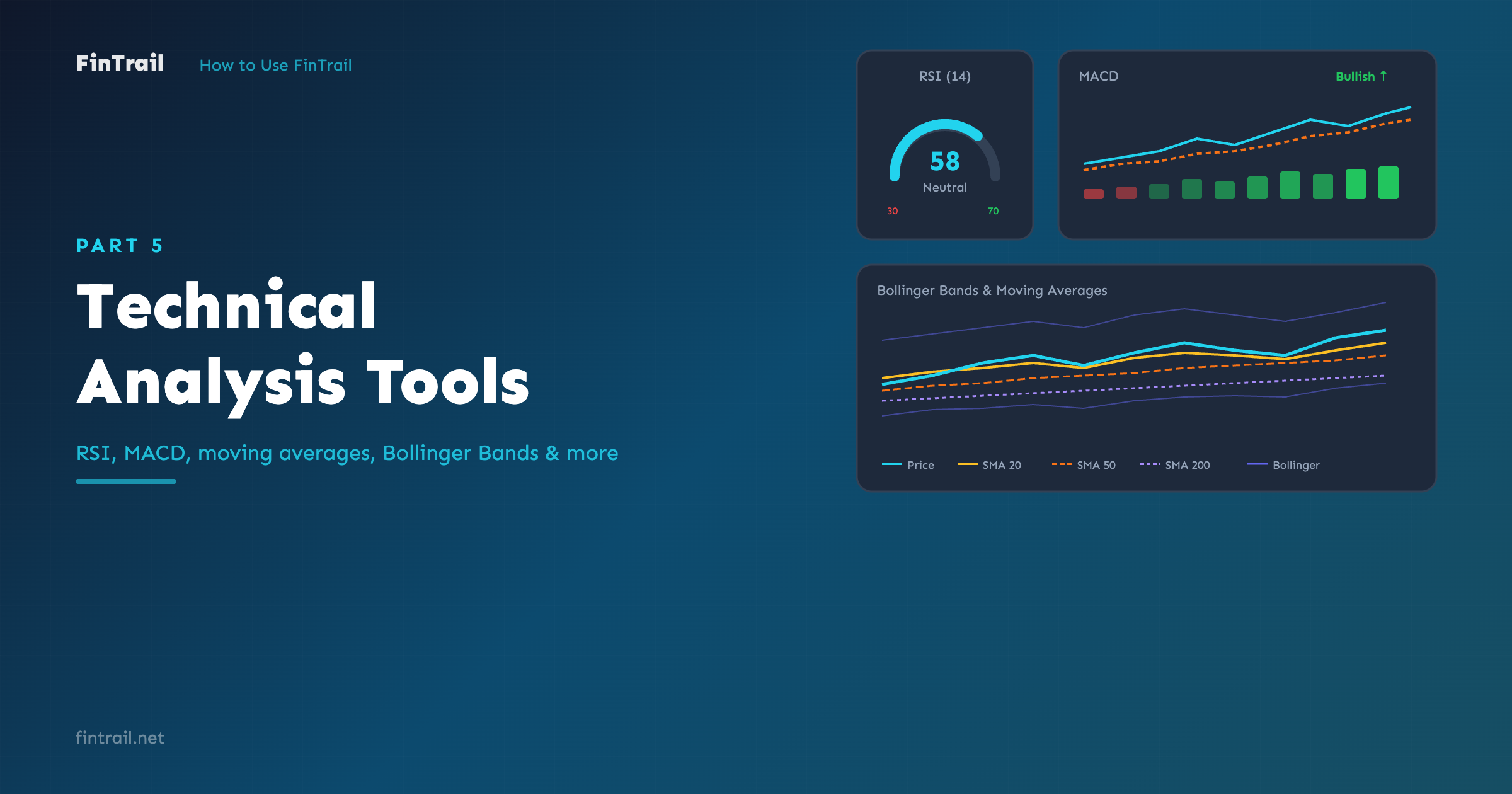
- Technical indicators — RSI, MACD, moving averages, Bollinger Bands, and more
- Recent news and corporate announcements for that stock
Stock Screener
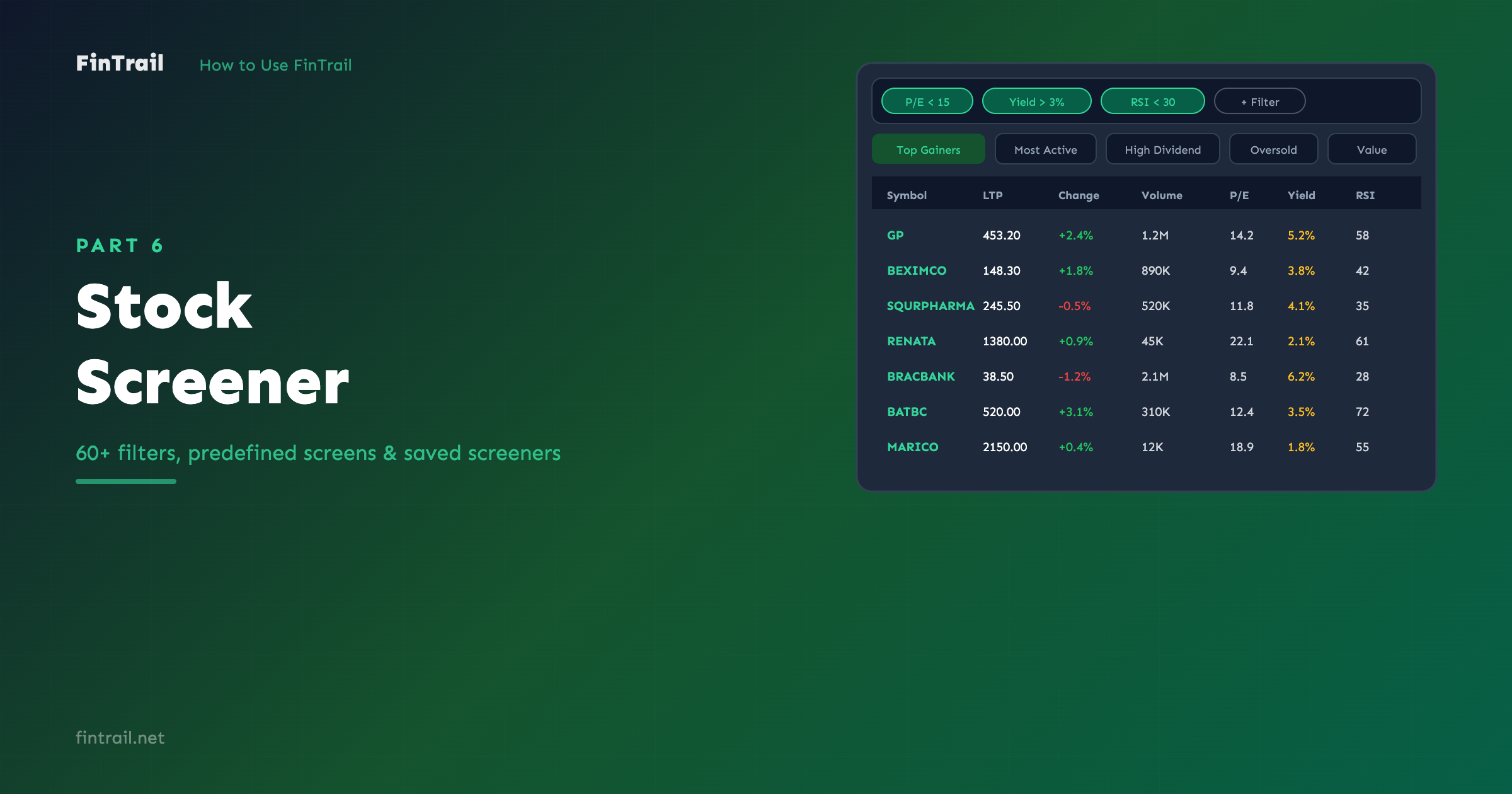
The screener lets you filter all DSE stocks using 28 criteria across price, volume, valuation, fundamentals, shareholding, and technical indicators. Use predefined screens like “Top Gainers”, “High Dividend”, or “Oversold (RSI < 30)” — or build your own custom filters and save them.
Market Dashboard
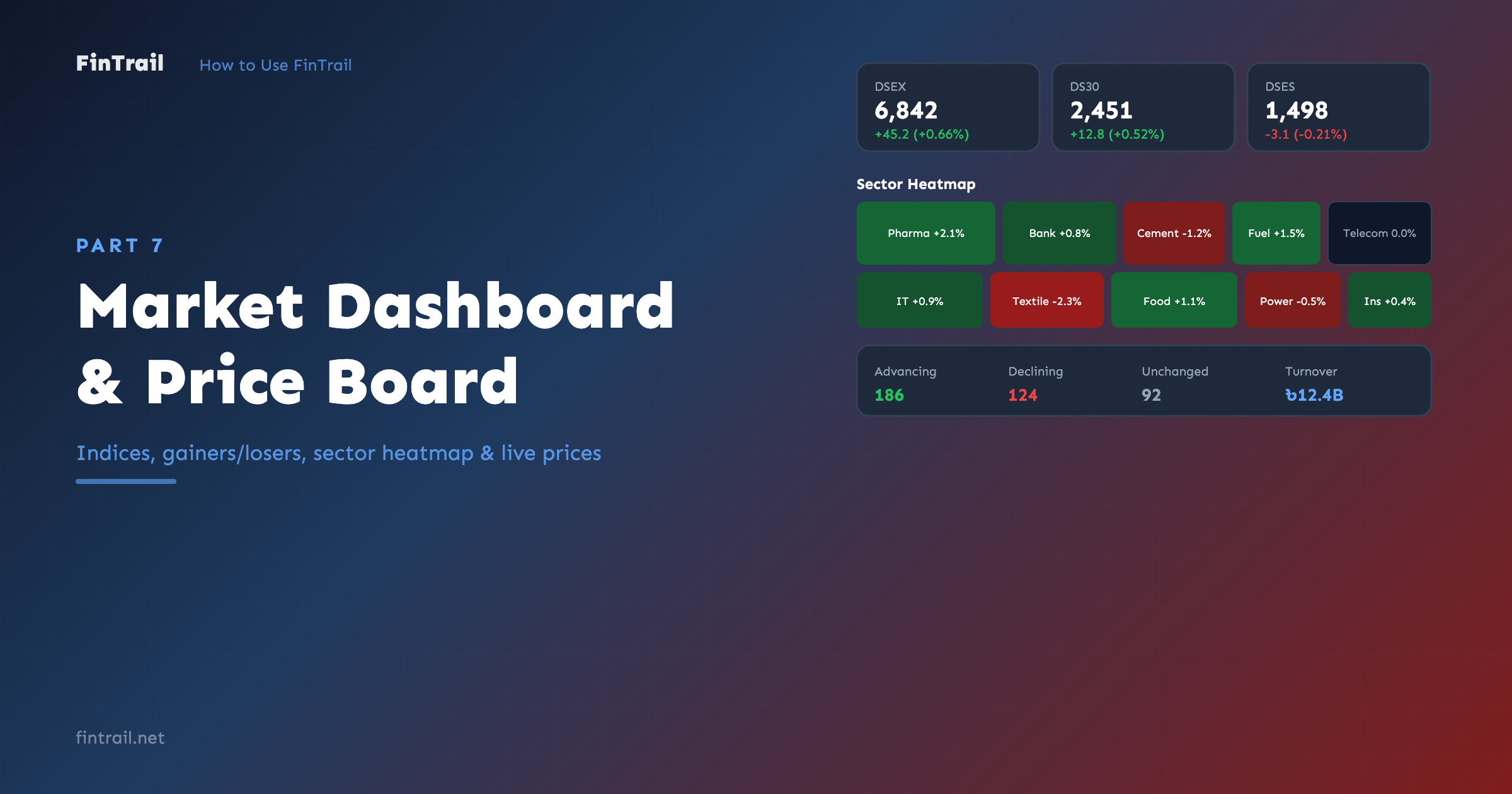
A real-time overview of the entire market: DSEX, DS30, and DSES index values, top gainers and losers, sector heatmap, and market sentiment. Data refreshes every 30 seconds during trading hours.
Price Alerts
Set alerts for any stock based on four conditions: price above, price below, percentage change up, or percentage change down. Get notified via email, web push, Telegram, or Discord. Alerts can be one-time or recurring.
News & Events
Stay on top of DSE announcements with the News feed — filterable by category (Dividend, Financials, AGM/EGM, Board Meeting, Regulatory). The Events page shows upcoming corporate actions like AGMs, record dates, and rights issues.
Switch to “My Feed” to see only news and events related to stocks in your portfolio and watchlists.
Community Stream
FinTrail’s social feed where investors share analysis, discuss stocks, and run polls. The “For You” tab shows personalized content based on your portfolio, watchlists, and who you follow. You can post text, images, tag stocks, and create polls.
Profile & Settings
Manage your account, change your password, enable two-factor authentication, configure email notification preferences, and connect integrations like Telegram and Discord for alert notifications.
What is Next
Now that you have your account set up and your first portfolio created, the next step is to start tracking trades. In the next post, we will cover buying and selling stocks, understanding your portfolio dashboard, and reading your P&L metrics.
This is Part 1 of the How to Use FinTrail series. Continue to Part 2: Portfolio Management — Track Every Trade Like a Pro.