Your FinTrail account is the foundation of everything — your portfolios, alerts, watchlists, and community presence all live here. This final guide covers how to customize your profile, lock down your account security, and connect external services for notifications.
Profile Settings
Access your settings from the Profile menu in the navigation. Here you can update everything you set during registration and more.
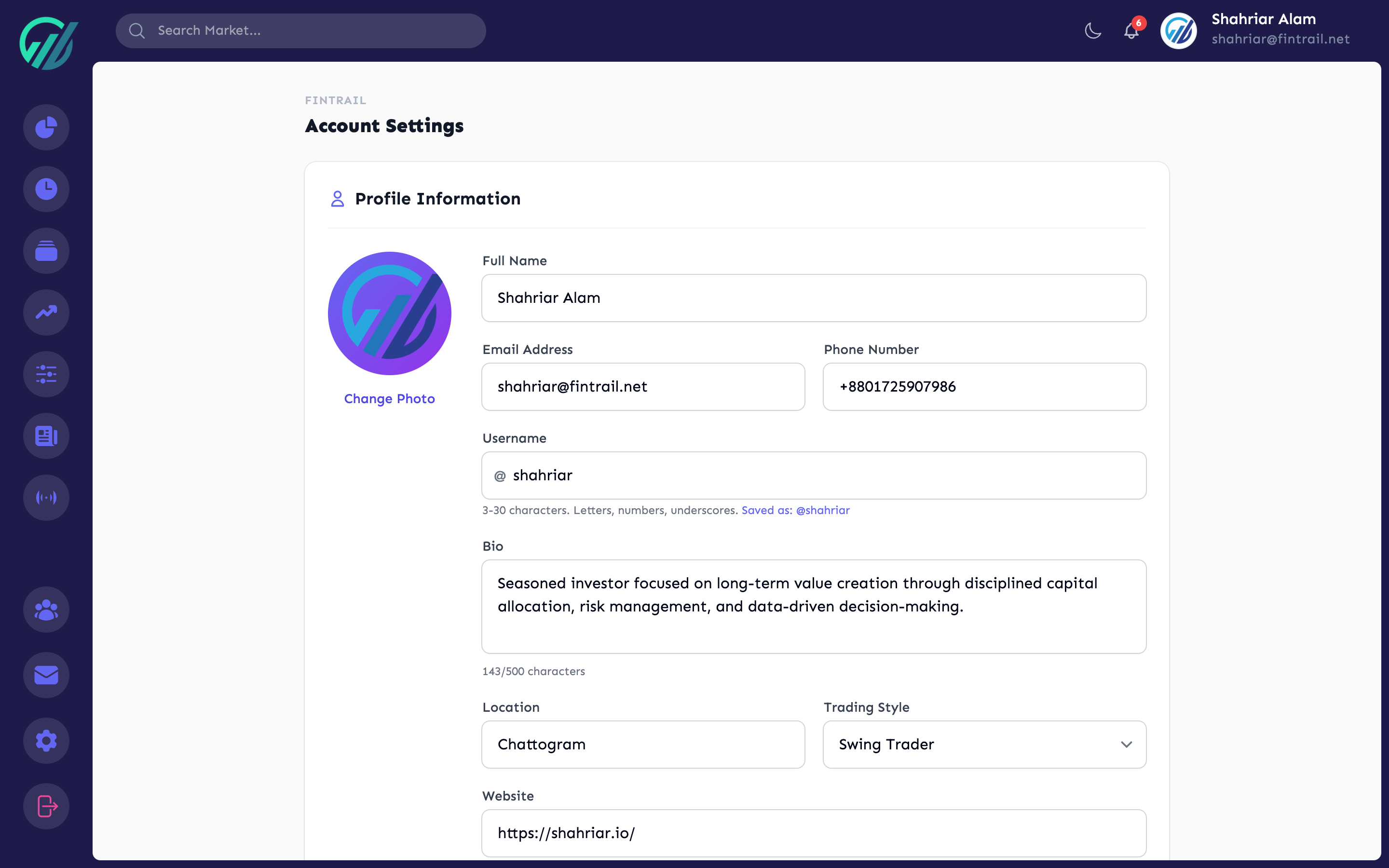
Account Details
- Name — your display name across the platform
- Username — your unique identifier and public profile URL (
app.fintrail.net/user/yourname) - Email — your registered email address
- Phone — your phone number
Community Profile
These fields shape how you appear in the Community Stream:
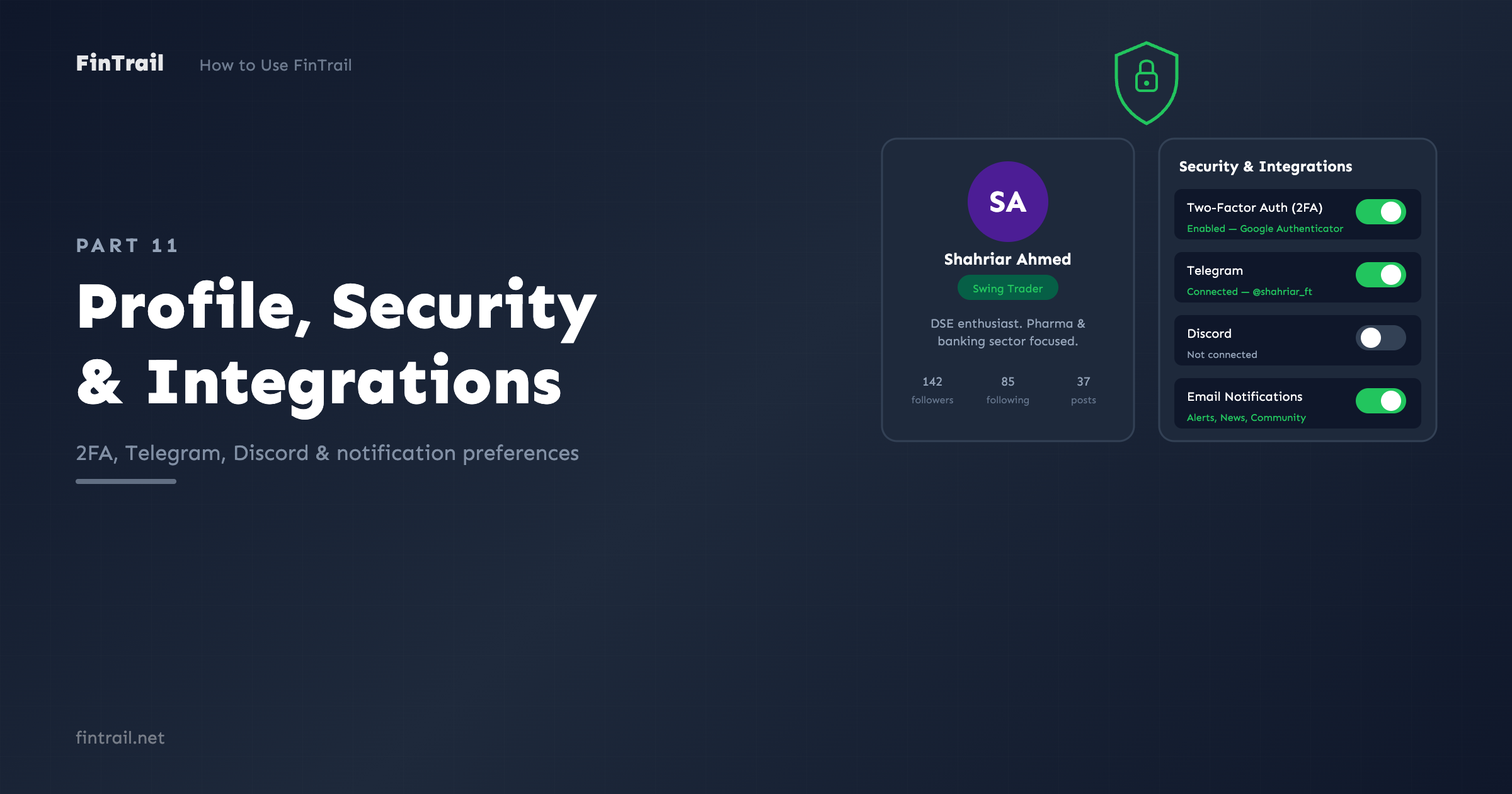
- Trading style — choose from Day Trader, Swing Trader, Position Trader, Investor, or Scalper. This shows as a badge on your profile.
- Bio — a short description of your investment approach or interests
- Profile photo — upload a photo (max 2MB)
Password
Change your password from the settings page. You will need to enter your current password and the new one.
Two-Factor Authentication (2FA)
Two-factor authentication adds a second layer of security to your account. Even if someone gets your password, they cannot log in without the second factor.
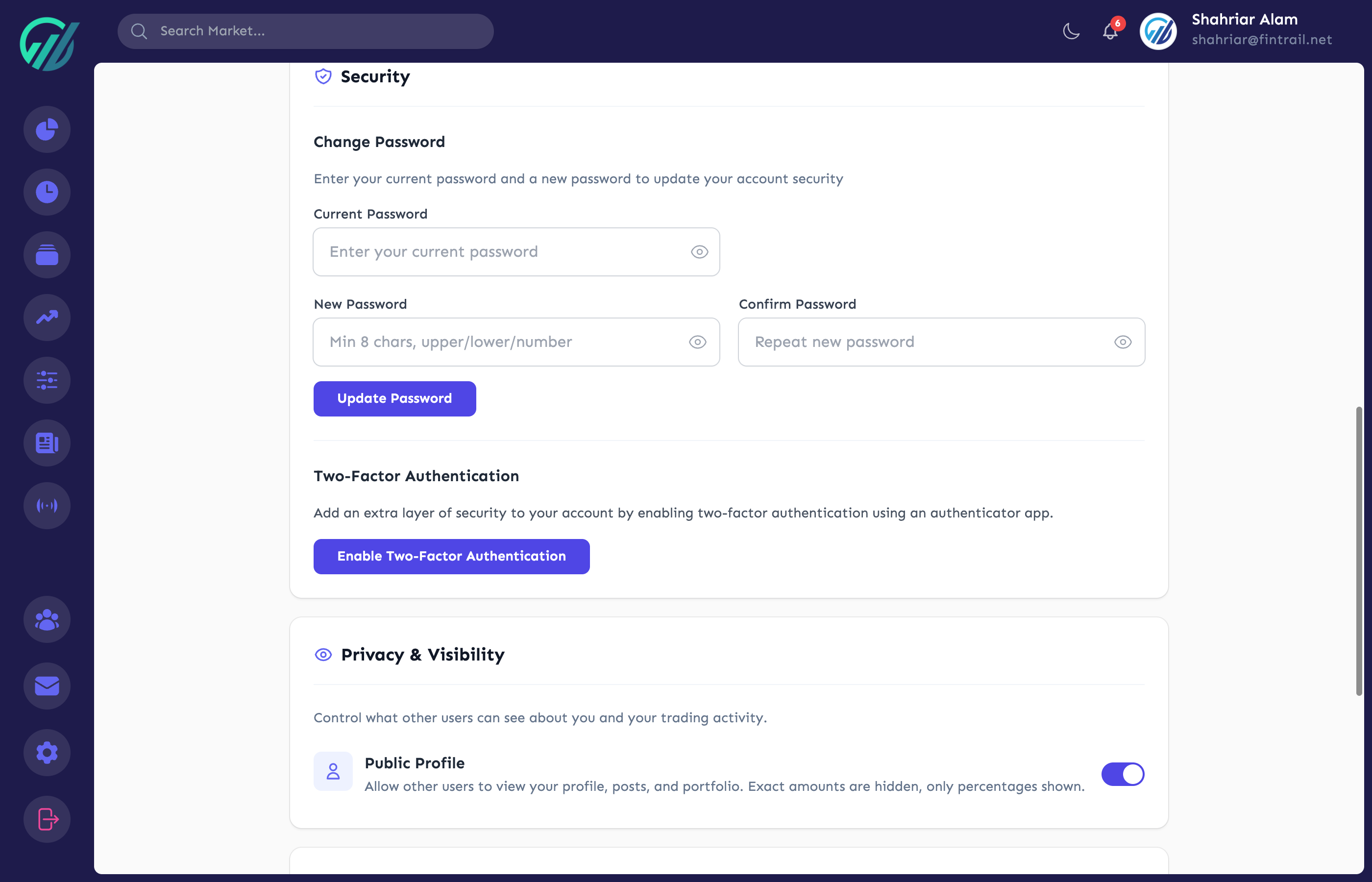
Setting Up 2FA
- Go to Profile Settings
- Find the Two-Factor Authentication section
- Click Enable 2FA
- Scan the QR code with an authenticator app (Google Authenticator, Authy, or any TOTP-compatible app)
- Enter the 6-digit code from your authenticator to confirm
- Save your recovery codes somewhere secure — these let you log in if you lose access to your authenticator
Using 2FA
Once enabled, every login will require:
- Your email and password (as usual)
- A 6-digit code from your authenticator app
The code changes every 30 seconds, so even if someone sees one code, it expires quickly.
Disabling 2FA
You can turn off 2FA from the same settings section. You will need to enter a current authenticator code to confirm the change.
Email Notifications
Configure which emails you want to receive:
- Price alert notifications — emails when your price alerts trigger
- News updates — summaries of relevant news for your stocks
- Community notifications — when someone comments on your post, follows you, or mentions you
Toggle each category on or off based on your preferences.
Telegram Integration
Connect your Telegram account to receive price alert notifications directly in Telegram — faster and more noticeable than email for time-sensitive alerts.
How to Connect
- Go to Profile Settings
- Find the Telegram section
- Click Connect Telegram
- You will be directed to start a conversation with the FinTrail bot on Telegram
- Follow the bot’s instructions to link your account
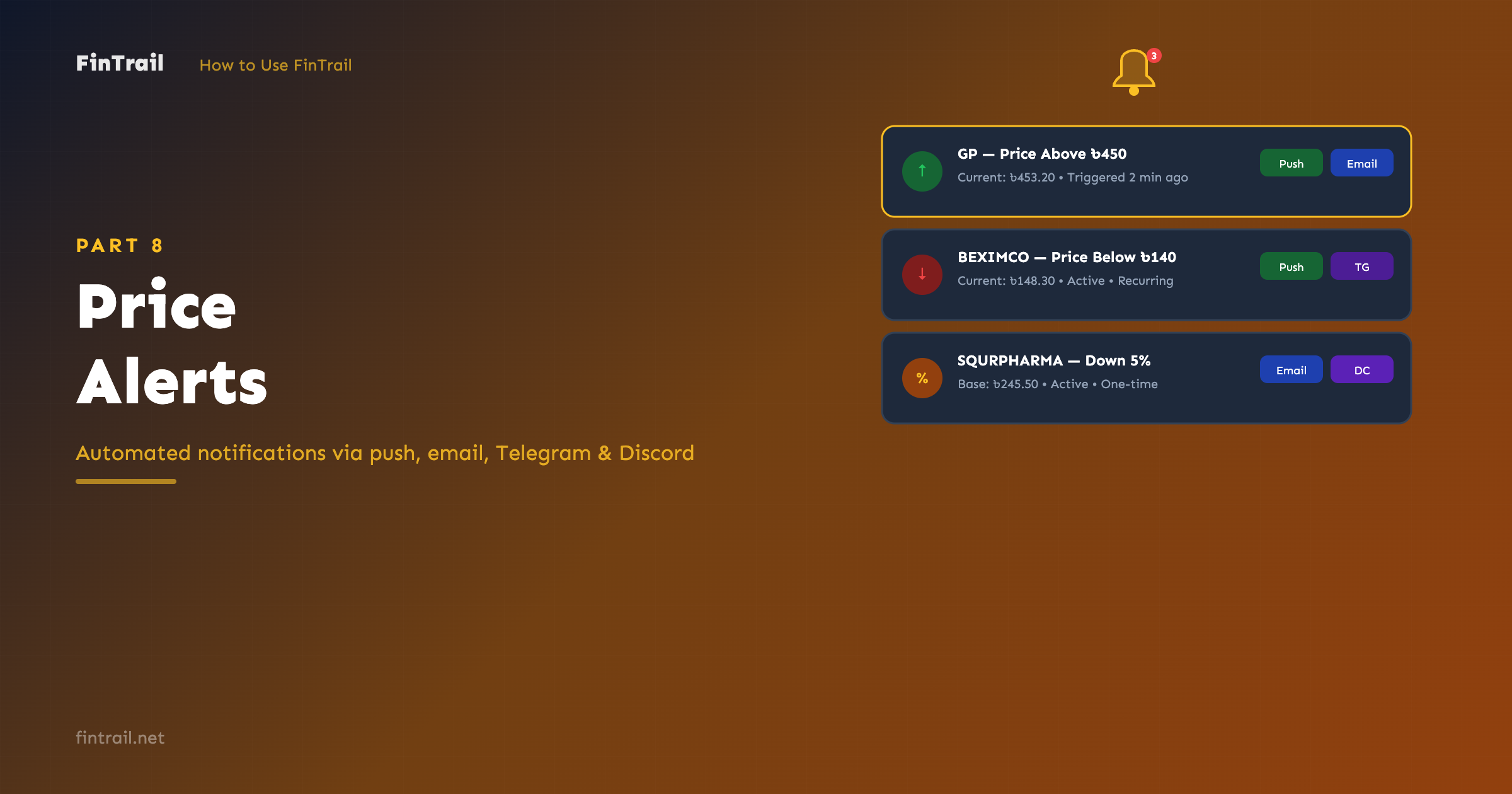
Once connected, any alert with “Telegram” enabled as a notification channel will send messages to your Telegram. See Part 8: Price Alerts for how to create and manage alerts.
Discord Integration
Similar to Telegram, you can connect your Discord account for alert notifications.
How to Connect
- Go to Profile Settings
- Find the Discord section
- Click Connect Discord
- Authorize FinTrail to send you messages on Discord
- Done — alerts with “Discord” enabled will now notify you there
Account Deactivation
If you need to deactivate your account, the option is available at the bottom of the Profile Settings page. Deactivation hides your profile and posts from the community but preserves your data in case you want to reactivate later.
Quick Reference
Here is a summary of the key settings:
| Setting | Where | What It Does |
|---|---|---|
| Profile photo & bio | Profile Settings | How you appear in the community |
| Password | Profile Settings | Account security |
| 2FA | Profile Settings | Second layer of login security |
| Email preferences | Profile Settings | Control which emails you receive |
| Telegram | Profile Settings | Alert notifications via Telegram |
| Discord | Profile Settings | Alert notifications via Discord |
Series Wrap-Up
You have now covered every feature of FinTrail — from creating your first portfolio to securing your account with 2FA. Here is the complete series for reference:
- Getting Started with FinTrail — account setup and first portfolio
- Portfolio Management — buying, selling, and dashboard
- Portfolio Details & Trade History — funds, transactions, CSV export
- Watchlists & Stock Analysis — tracking stocks and fundamentals
- Technical Analysis Tools — RSI, MACD, moving averages, and more
- Stock Screener — filtering with 28 criteria
- Market Dashboard & Price Board — real-time market overview
- Price Alerts — automated notifications
- News, Events & Corporate Actions — staying informed
- Community Stream — social investing
- Profile, Security & Integrations — this guide
Have questions or feedback? Reach out to us at support@fintrail.net.
This is Part 11 of the How to Use FinTrail series. ← Previous: Community Stream.