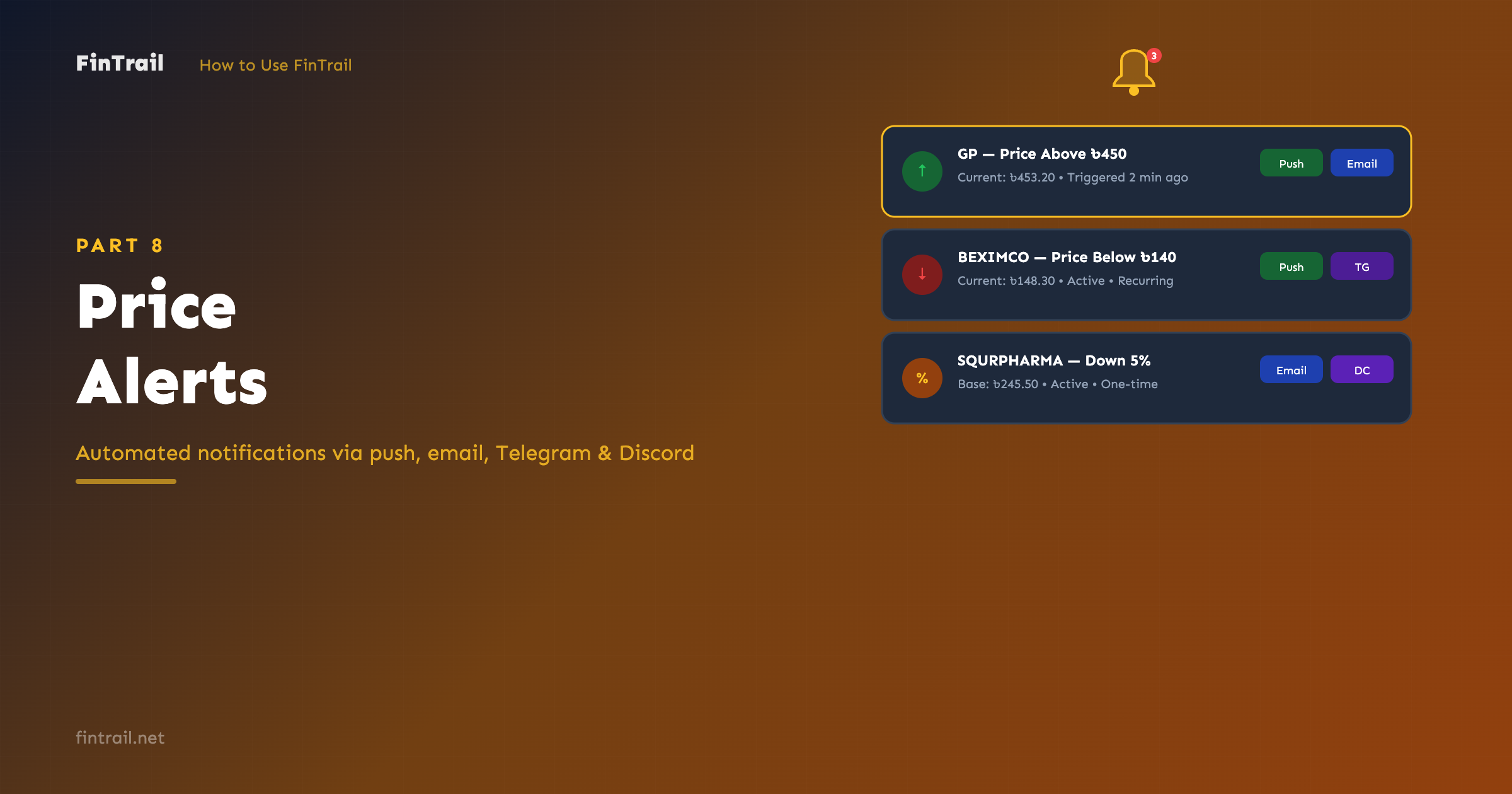
You cannot watch the market every minute. Price alerts let FinTrail watch for you and notify you when a stock hits a price or moves by a percentage you care about. Set alerts from anywhere in the app and manage them all from a dedicated page.
Setting Up an Alert
You can create a price alert from three places:
- Stocks page — click the alert icon on any stock
- Analysis page — click the alert button on a stock’s detail page
- Alerts page — click Create Alert for a fresh setup
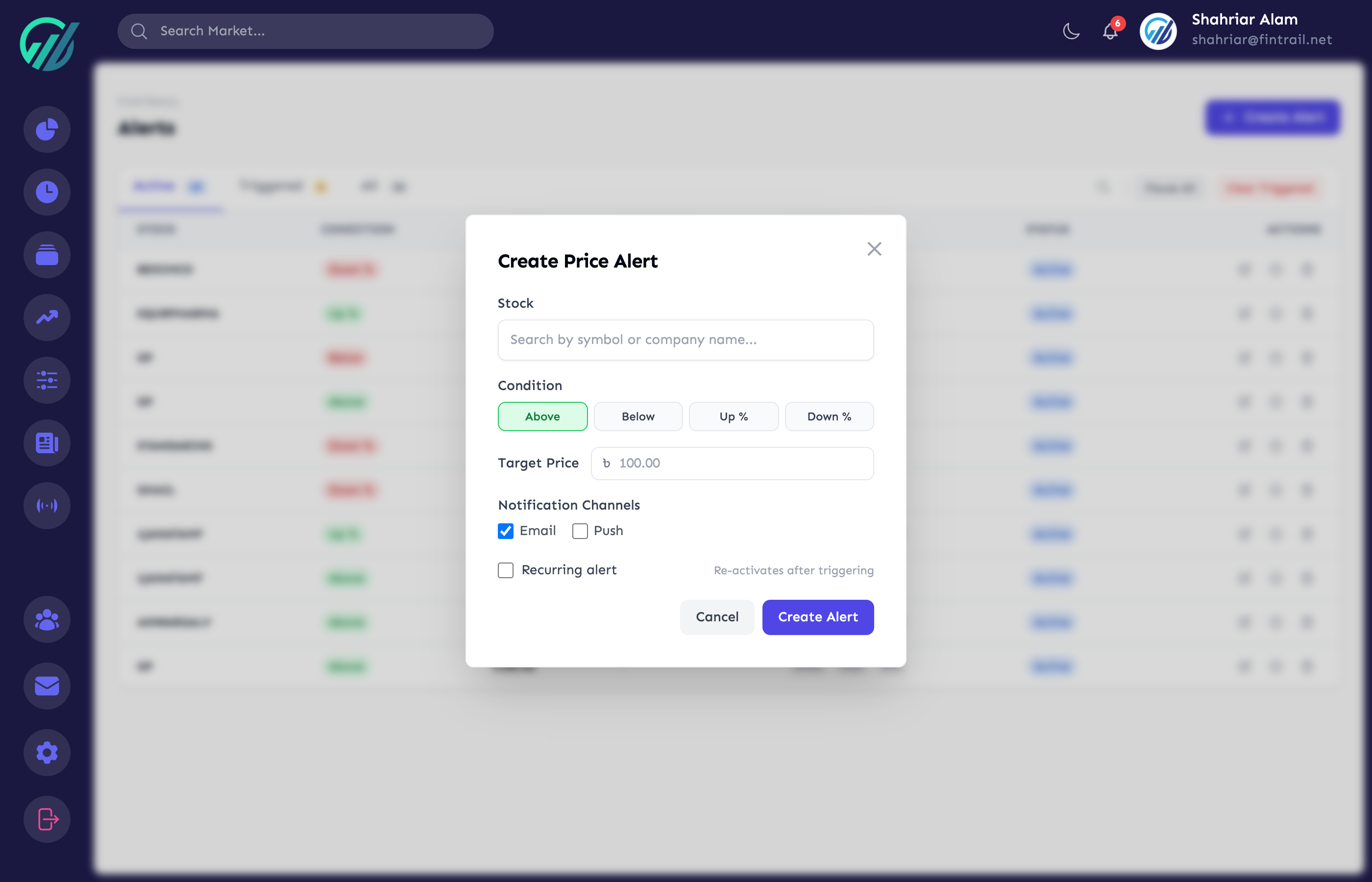
Condition Types
Every alert needs a condition — the trigger that fires the notification:
- Price Above — fires when the stock’s last traded price goes above your target (e.g., GP above ৳450)
- Price Below — fires when the price drops below your target (e.g., BEXIMCO below ৳120)
- Percentage Change Up — fires when the stock rises by a percentage from its current price (e.g., SQURPHARMA up 5%)
- Percentage Change Down — fires when the stock drops by a percentage (e.g., MARICO down 3%)
For percentage-based alerts, FinTrail records the stock’s price at the time you set the alert as the base price. The percentage change is calculated from that base.
Notification Channels
Choose how you want to be notified. You can enable multiple channels for the same alert:
- Web Push — browser notifications (enabled by default)
- Email — notification sent to your registered email
- Telegram — requires connecting your Telegram account in Settings
- Discord — requires connecting your Discord account in Settings
Learn how to connect Telegram and Discord in Part 11: Profile, Security & Integrations.
One-Time vs. Recurring
By default, alerts fire once and then deactivate. Toggle Recurring to make an alert fire every time the condition is met — useful for monitoring stocks that oscillate around a price level.
Managing Alerts
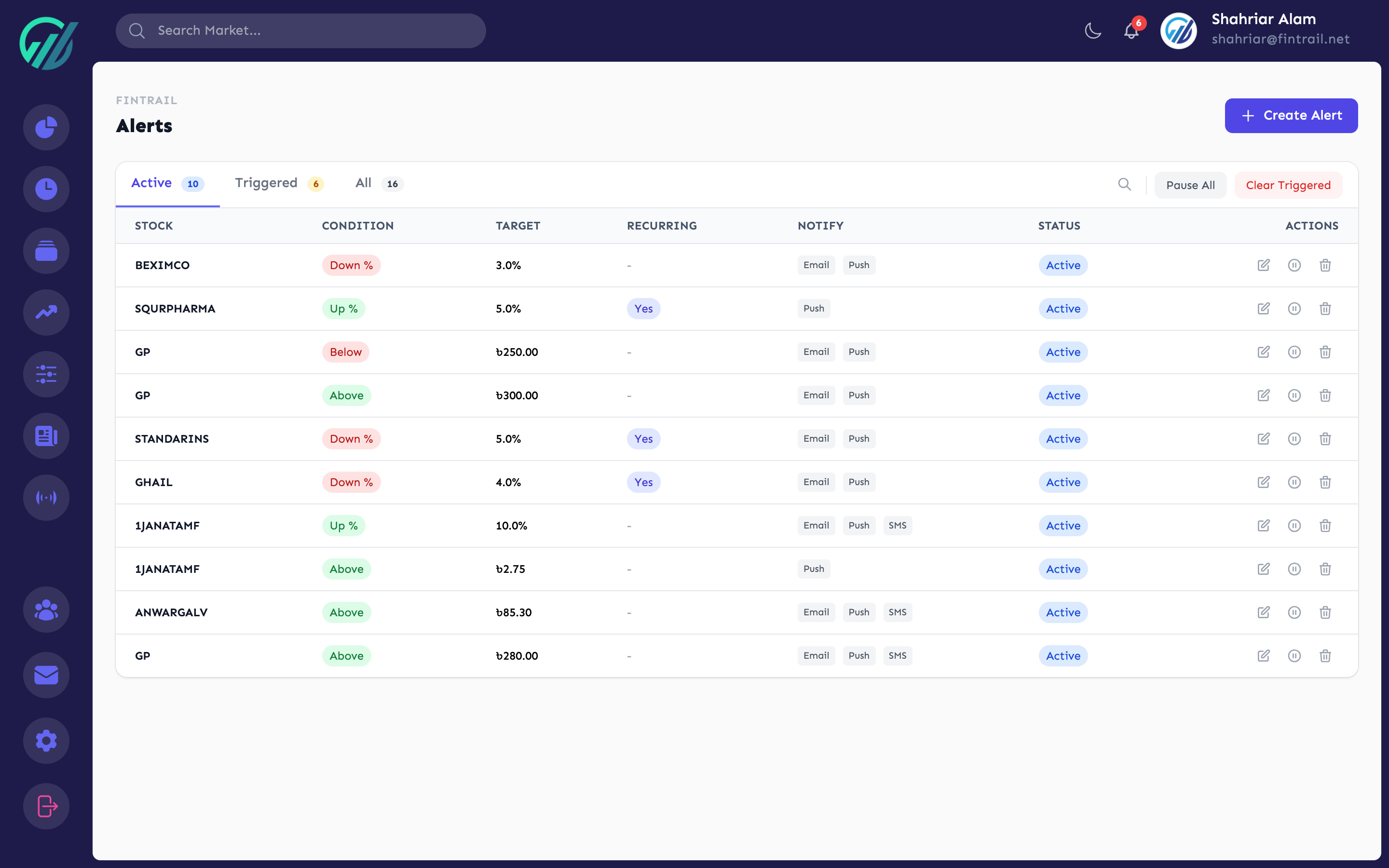
The Alerts page (accessible from the navigation menu) is your central hub for managing all alerts.
Tabs
Three tabs organize your alerts:
- Active — alerts currently watching the market, with a count badge
- Triggered — alerts that have already fired, showing when they triggered
- All — every alert regardless of status
Search
Type a stock symbol to filter your alerts list.
Actions
For each alert, you can:
- Edit — change the target value, condition type, notification channels, or recurring setting
- Pause — temporarily stop an alert without deleting it. The alert stays in your list but will not fire until resumed.
- Resume — reactivate a paused alert
- Re-enable — reset a triggered alert so it watches the market again
- Delete — permanently remove an alert
Bulk Actions
Two bulk actions are available:
- Pause All — pauses every active alert at once
- Delete Triggered — removes all triggered alerts to clean up your list
Alert Evaluation
FinTrail checks alert conditions against live market data during trading hours. When a condition is met:
- The alert is marked as triggered with a timestamp
- Notifications are sent through your selected channels
- If recurring, the alert resets and continues watching
Non-recurring alerts automatically deactivate after triggering. You can re-enable them manually from the Triggered tab if you want to set the same alert again.
Tips for Effective Alerts
- Entry points — set a “Price Below” alert for stocks you want to buy at a lower price
- Exit points — set a “Price Above” alert to know when to take profits
- Risk management — set a “Percentage Change Down” alert on your holdings to get warned about significant drops
- Breakout watching — set alerts near resistance levels to catch breakouts
- Combine with watchlists — add stocks to a watchlist first, then set alerts on the ones that matter most
What is Next
With alerts handling your price monitoring, Part 9 covers News, Events, and Corporate Actions — how to stay informed about dividend announcements, AGMs, record dates, and other market-moving information.
This is Part 8 of the How to Use FinTrail series. ← Previous: Market Dashboard & Price Board. Continue to Part 9: News, Events & Corporate Actions.